Your Windows laptop used to feel fast. Now it takes two minutes to boot, apps hang, and the fan sounds like it's about to take off. Before you consider replacing it, here's the thing: most slow Windows laptops don't need replacing. They just need a bit of attention.
This guide walks through every fix — from the five-minute wins you can do right now, to the deeper changes that make a real long-term difference. No technical background needed.
🐌 Why Windows Laptops Slow Down
Before jumping into fixes, it helps to understand what's actually happening. Windows laptops slow down for a handful of very predictable reasons — and once you understand them, the solutions make obvious sense.
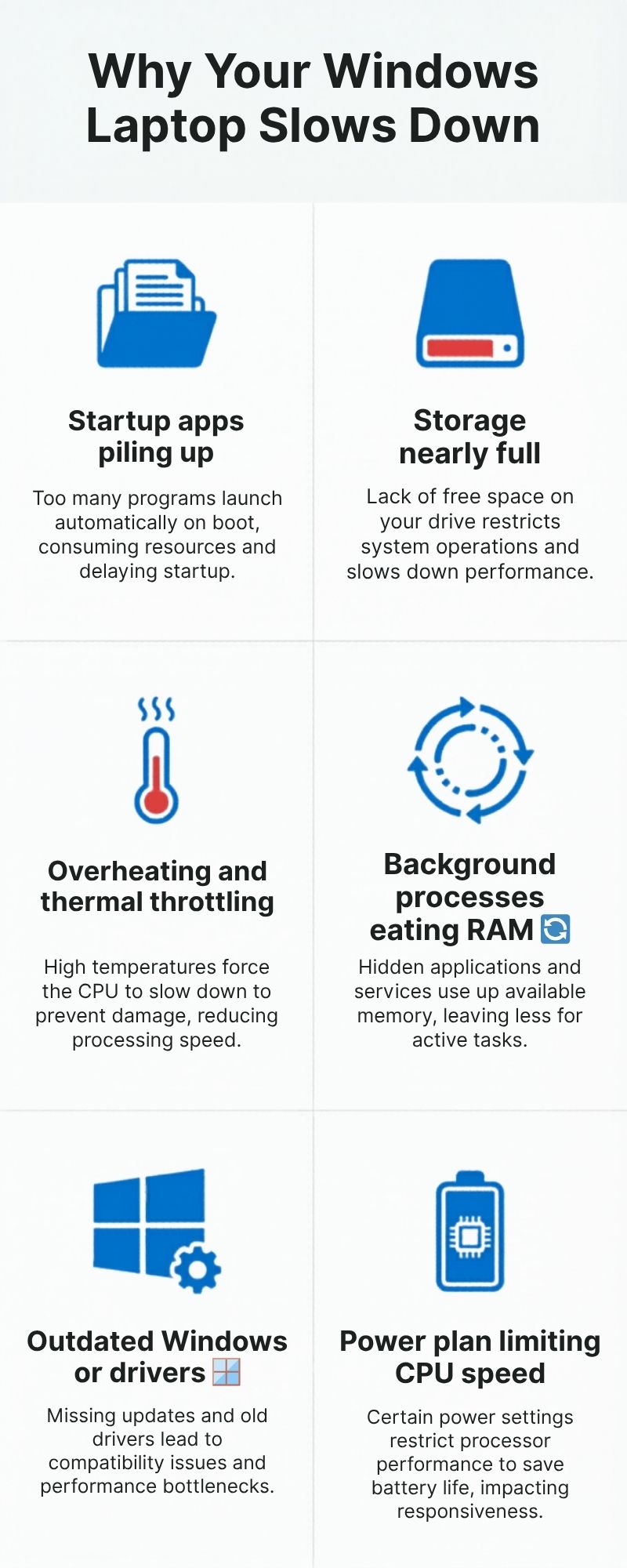
- Too many startup apps — every program you install often adds itself to startup, running silently in the background every time you turn on your laptop
- Storage nearly full — when your C: drive is over 80–85% full, Windows struggles to use it efficiently. This causes noticeable lag, fast.
- Overheating — dust builds up in the fan and vents over time, causing the processor to throttle itself down to avoid damage
- Background processes — apps consuming RAM and CPU even when you're not using them
- Wrong power plan — many laptops default to Balanced or Power Saver, which deliberately limits processor speed
- Outdated drivers or Windows updates — a backlog of pending updates can cause background slowdowns as your system keeps checking and retrying downloads
Most slow Windows laptops are suffering from the first three. Start there.
⚡ Do These First — Quick Wins Under 5 Minutes
Restart Properly
Most people either never fully shut down their laptop, or they close the lid and leave it in sleep mode for days. A proper restart clears RAM, closes background processes, and applies pending updates. On Windows 11, use Start → Power → Restart — not Shut Down, which can resume the previous session state.
Check How Full Your Storage Is
Open File Explorer, right-click your C: drive, and click Properties. If the bar is over 80% full, freeing up space should be your first priority — the fix below takes about three minutes and often recovers 10–20GB.
Install Pending Updates
Go to Settings → Windows Update → Check for updates. A backlog of updates running silently in the background is a common and easily overlooked cause of slowdowns. Get them done, restart, and check if it's improved.
🪟 Step-by-Step: How to Speed Up Windows 11
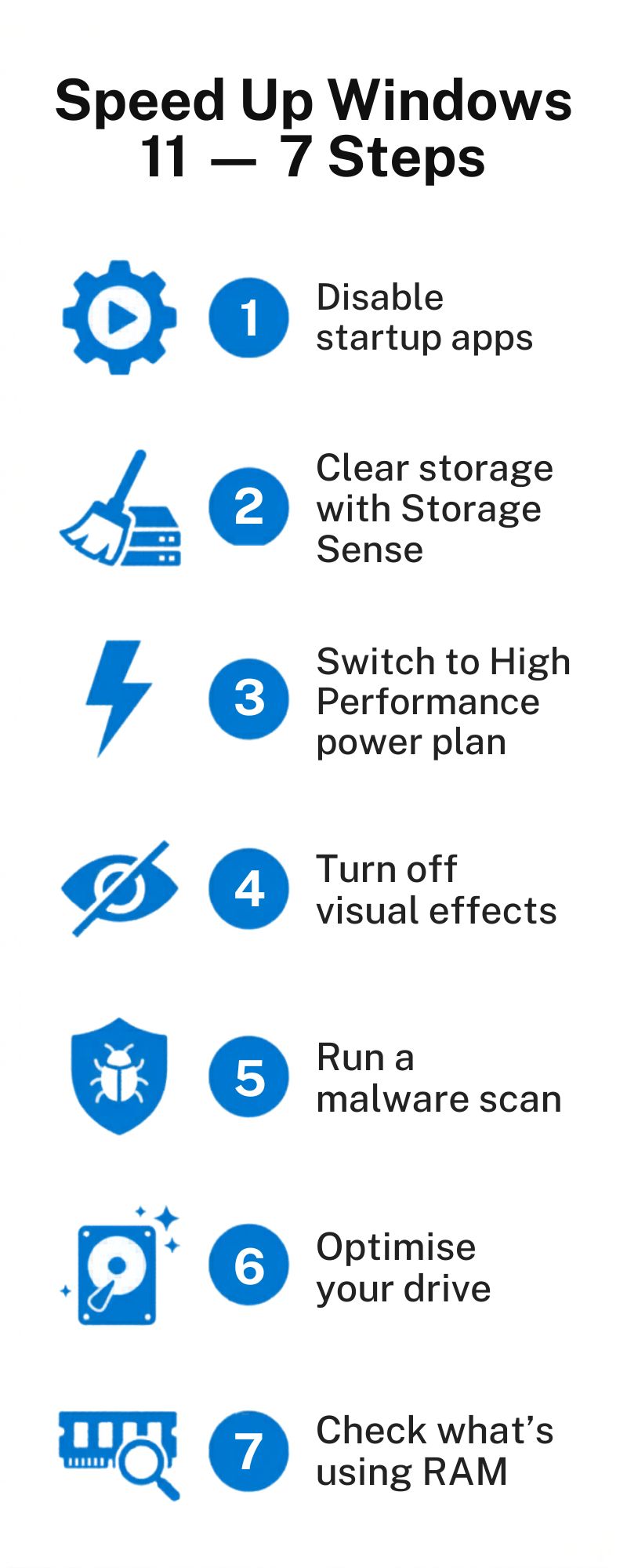
Step 1: Disable Startup Apps
This is the single biggest quick win for most Windows laptops. Apps like Spotify, Teams, Discord, Zoom, and OneDrive all launch automatically on startup — even when you don't need them. Each one takes a chunk of RAM and CPU during boot, and some run in the background all day.
How to do it:
- 1. Press Ctrl + Shift + Esc to open Task Manager
- 2. Click the Startup apps tab
- 3. Sort by Startup impact — focus on anything marked High
- 4. Right-click apps you don't need at startup → Disable
- 5. Safe to disable: Spotify, Teams (if not used daily), Discord, game launchers, OneDrive (open it manually instead)
- 6. Leave enabled: antivirus, audio drivers, anything from your laptop manufacturer
Step 2: Free Up Storage with Storage Sense
Windows has a built-in tool called Storage Sense that clears temporary files, empties the Recycle Bin, and removes old Windows Update files that are sitting there doing nothing. On a laptop that hasn't been cleaned recently, this typically recovers 5–20GB.
How to do it:
- 1. Open Settings → System → Storage
- 2. Click Temporary files
- 3. Tick: Temporary files, Recycle Bin, Windows Update Cleanup, and Downloads (review what's in there first)
- 4. Click Remove files
- 5. Scroll down and toggle on Storage Sense to keep it clean automatically going forward
Step 3: Change Your Power Plan
Many Windows laptops default to Balanced or Power Saver, which deliberately caps processor speed to save battery. If things feel sluggish when you're plugged in, this is an easy fix.
How to do it:
- 1. Click the battery icon in the taskbar
- 2. Drag the slider to Best performance when plugged in
- 3. Or search "Power plan" → Change plan settings → High performance
Switch back to Balanced on battery — High Performance drains it quickly.
Step 4: Turn Off Visual Effects
Windows 11 has smooth animations, shadows, and transparency effects that look polished but consume RAM and GPU resources. Turning them off makes older or lower-spec laptops noticeably snappier.
How to do it:
- 1. Search "Adjust the appearance and performance of Windows"
- 2. Select "Adjust for best performance" to turn off everything
- 3. Or choose "Custom" and keep just "Smooth edges of screen fonts" and "Show thumbnails instead of icons" — disable the rest
Step 5: Run a Malware Scan
Malware and adware run silently in the background, consuming CPU and sending data without you knowing. Windows Defender is built into Windows 11, it's free, and it's genuinely good.
How to do it:
- 1. Search for Windows Security
- 2. Click Virus & threat protection
- 3. Run a Full scan (takes 20–40 minutes)
- 4. Let it quarantine anything it finds, then restart
Step 6: Optimise Your Drive
If your laptop has an old spinning hard drive (HDD), defragmenting it can help performance. If you have an SSD, Windows runs an optimisation process called TRIM instead — both should be happening automatically, but it's worth checking.
How to do it:
- 1. Search "Defragment and Optimise Drives"
- 2. Select your C: drive and click Optimise
- 3. Make sure Scheduled optimisation is turned on
Step 7: Check What's Eating Your RAM and CPU
Task Manager tells you exactly what's running and how much of your system it's consuming in real time.
How to do it:
- 1. Press Ctrl + Shift + Esc
- 2. Click the Processes tab
- 3. Click the CPU column to sort by usage — look for anything high that you're not actively using
- 4. Click the Memory column and do the same
- 5. Right-click a non-system process → End task to stop it
Common culprits: browser tabs (each Chrome/Edge tab uses RAM), cloud sync tools mid-sync, antivirus scans running in the background.
🔧 When Software Isn't Enough: Hardware Upgrades
If you've worked through all the steps above and the laptop is still slow, the bottleneck may be hardware. Before you replace the whole machine, check whether an upgrade is possible — it's often a fraction of the cost.
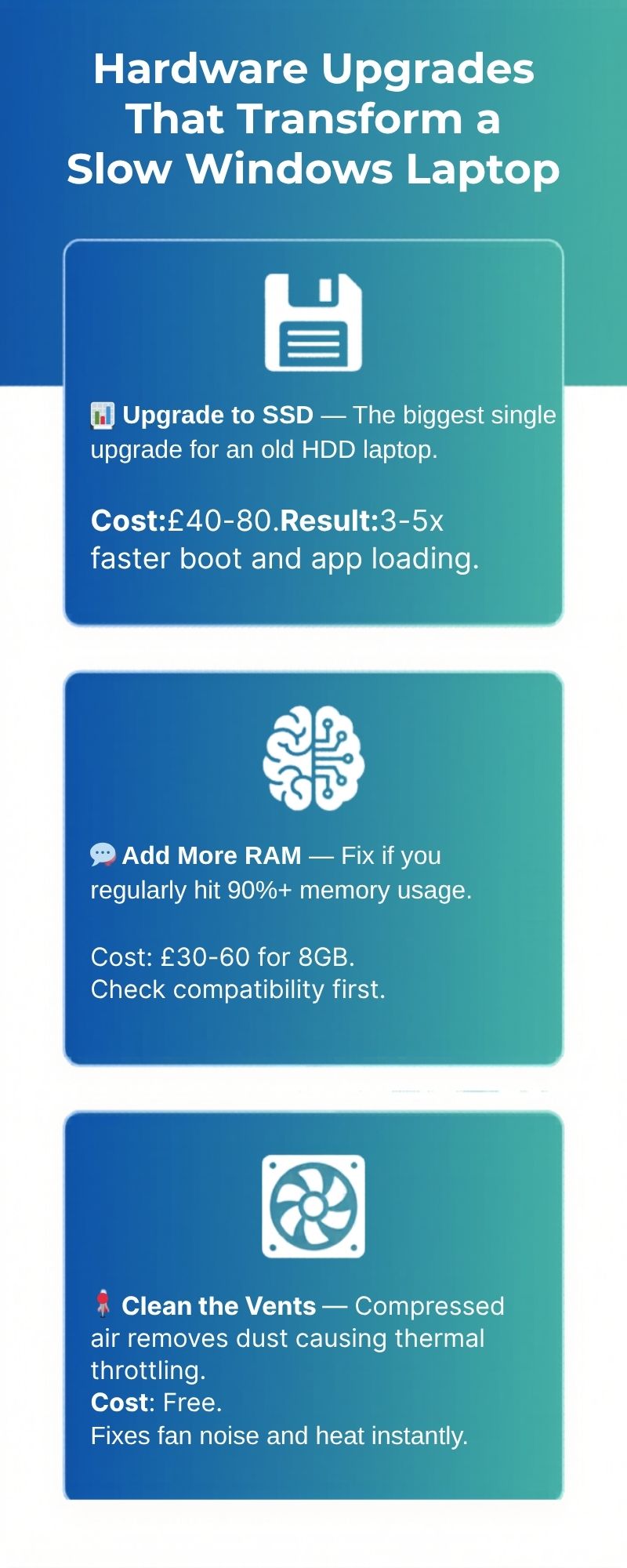
Upgrade to an SSD
If your laptop still has an old spinning hard drive (HDD), replacing it with an SSD is the single most impactful upgrade you can make. Boot times drop from 2 minutes to under 20 seconds. Apps that took 30 seconds to open launch in 3. It genuinely feels like a new machine. A 500GB SSD costs around £35–50 and the swap takes 20 minutes on most Windows laptops.
Add More RAM
If Task Manager shows you regularly sitting at 90–100% memory usage, more RAM will make a clear difference. Most Windows laptops made before 2022 have upgradeable RAM slots — check your laptop model first as some newer ultrabooks have soldered RAM. Going from 8GB to 16GB typically costs £30–60.
Clean the Vents
Dust builds up in the fan and vents over time, causing the CPU to throttle itself to avoid overheating. A can of compressed air aimed at the vents (from the outside) is free and often makes an immediate difference to both performance and fan noise. If you're comfortable opening the laptop, replacing the thermal paste every 3–4 years is even more effective.
Upgrade or Replace?
General rule: if an SSD + RAM upgrade costs less than 30–40% of a new equivalent laptop, it's worth doing and you'll get 2–3 more years out of the machine. If it's 6+ years old with screen issues or a battery that won't hold charge, a replacement is likely better value.
🔄 Last Resort: Reset Windows
If you've tried everything and the laptop is still sluggish, a factory reset of Windows is often the fix. Years of software accumulation, corrupted system files, and driver conflicts all get wiped clean. You can choose to keep your personal files, so it's less drastic than it sounds.
How to do it:
- 1. Back up your files first — external drive, OneDrive, or Google Drive
- 2. Settings → System → Recovery
- 3. Click Reset PC
- 4. Choose "Keep my files" — reinstalls Windows, removes apps, keeps your documents
- 5. Follow the prompts — takes 30–60 minutes
❓ Common Questions
How much RAM do I need for Windows 11 to run smoothly?
8GB is the minimum for Windows 11 and workable for basic tasks, but 16GB is where things feel comfortable — especially if you use a browser heavily. If you edit video, run virtual machines, or keep many apps open simultaneously, 32GB is worth considering.
Will disabling startup apps cause any problems?
No — it just means those apps won't launch automatically. You can still open them manually whenever you need them. If you disable something and find it missing from where you expect it, just re-enable it in Task Manager → Startup apps.
Is it safe to use third-party cleaner apps like CCleaner?
For most people, the built-in Windows tools cover everything you need — for free. Some third-party cleaner apps bundle adware or cause more problems than they solve. If you do use one, stick to the paid version of a reputable tool and avoid the free browser extension versions.
My laptop is slow only when unplugged. Why?
This is almost always the power plan. When on battery, Windows limits processor speed to extend battery life. Plug it in and check that your power plan is set to Balanced or High Performance (as covered in Step 3 above).
Will a factory reset delete my files?
Only if you choose the "Remove everything" option. The "Keep my files" option preserves your documents, photos, and downloads while reinstalling Windows fresh. Always back up first regardless — it's good practice and takes 15 minutes.
✅ Your Windows Speed-Up Checklist
Work through this in order — most people find the first three steps make the biggest difference and are enough on their own.
- ☐ Restart properly (Start → Power → Restart)
- ☐ Check storage — under 80% full?
- ☐ Install pending Windows updates
- ☐ Disable high-impact startup apps (Task Manager → Startup apps)
- ☐ Clear temp files (Settings → Storage → Temporary files)
- ☐ Switch to High Performance power plan when plugged in
- ☐ Turn off visual effects (Adjust appearance and performance)
- ☐ Run a full malware scan (Windows Security)
- ☐ Check RAM and CPU usage in Task Manager
- ☐ Consider SSD or RAM upgrade if still slow
- ☐ Reset Windows as a last resort
Comments
Loading comments…